Content Locking
Content locking is the core feature of ContentLock. It prevents multiple editors from inadvertently overwriting each other’s work by making a content node read-only for everyone except the editor who holds the lock.
Locking a Node
Section titled “Locking a Node”There are two ways to lock a content node:
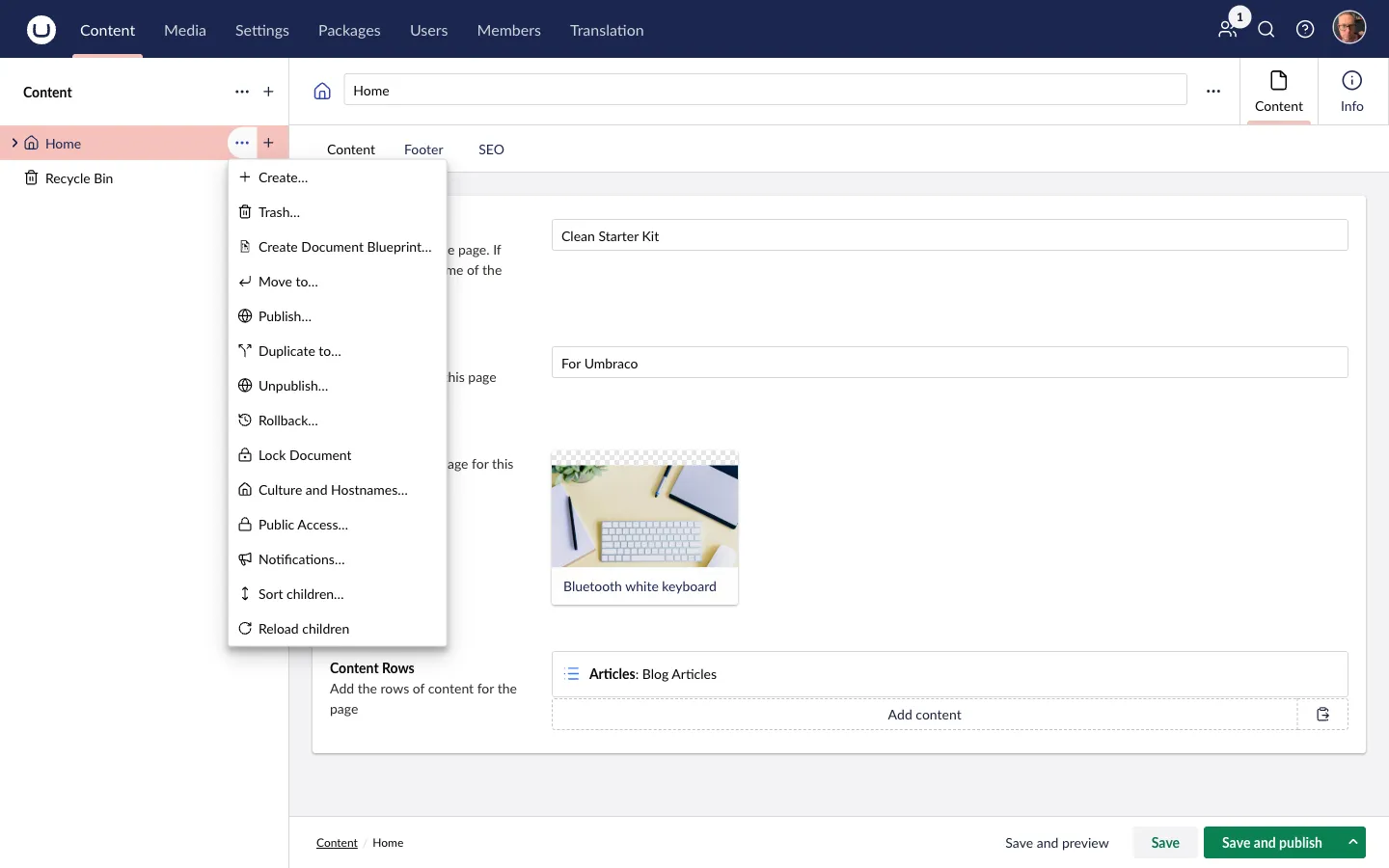
Via the tree context menu: Right-click any content node in the Content tree → click Lock.
Via the workspace actions menu: Open the content node → click the ⋮ (more actions) button in the top-right → click Lock under the Content Lock category.
The lock is applied immediately and broadcast to all connected editors via SignalR.
What Happens When a Node is Locked
Section titled “What Happens When a Node is Locked”Visual indicators
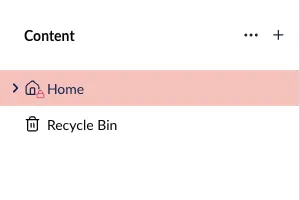
Section titled “Visual indicators”- A lock icon appears on the node in the Content tree.
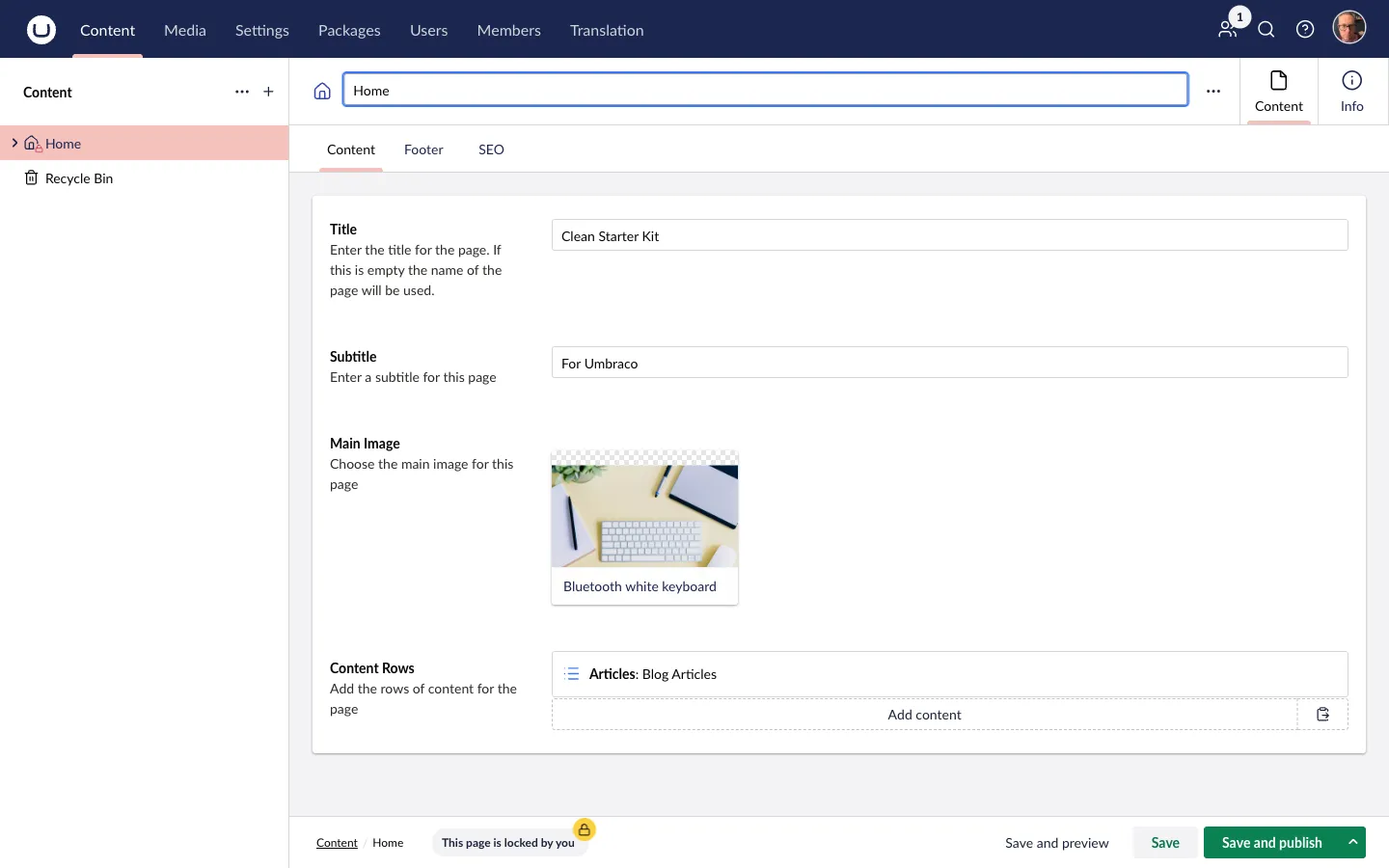
- A footer banner at the bottom of the workspace displays who holds the lock.
- If you hold the lock: “This page is locked by you”
- If someone else holds the lock: “This page is locked by [Name]“
Read-only properties
Section titled “Read-only properties”All content properties become disabled for users who do not hold the lock. Fields cannot be typed into or changed.
Hidden actions
Section titled “Hidden actions”The following actions are hidden from the workspace actions bar for users who do not hold the lock:
- Save
- Save and Publish
- Publish
- Unpublish
- Move To
- Duplicate To
- Rollback
- Move to Recycle Bin
- Delete
This prevents any accidental saves or publishes while another editor is working.
Unlocking a Node
Section titled “Unlocking a Node”If you hold the lock: Right-click the node in the tree → Unlock, or use the workspace ⋮ actions menu → Unlock.
If you have the Unlocker permission: You can unlock any node, regardless of who locked it. See Permissions for details.
The unlock is broadcast to all connected editors instantly — the node becomes editable for everyone again.
Automatic Unlock
Section titled “Automatic Unlock”Nodes are automatically unlocked in the following situations:
- Content deleted — when a locked node is permanently deleted, the lock is removed.
- Moved to Recycle Bin — when a locked node is trashed, the lock is removed.
Real-Time Updates
Section titled “Real-Time Updates”ContentLock uses SignalR to push lock state changes to every active backoffice session instantly. If Editor A locks a node while Editor B is viewing it, Editor B’s screen updates immediately — no page refresh needed.
Audit Trail
Section titled “Audit Trail”Every lock and unlock action is recorded in Umbraco’s built-in audit log. To view the history for a specific node:
- Open the content node.
- Click the Info tab (ⓘ) in the workspace.
- Scroll to the History section.
You will see entries for each lock and unlock event, including which user performed the action and when.
Screenshots
Section titled “Screenshots”